AirTM Account Verification for GPT Users: Documents, Attempts & Delays
airtm
 VERIFIED 2026
Quick answer
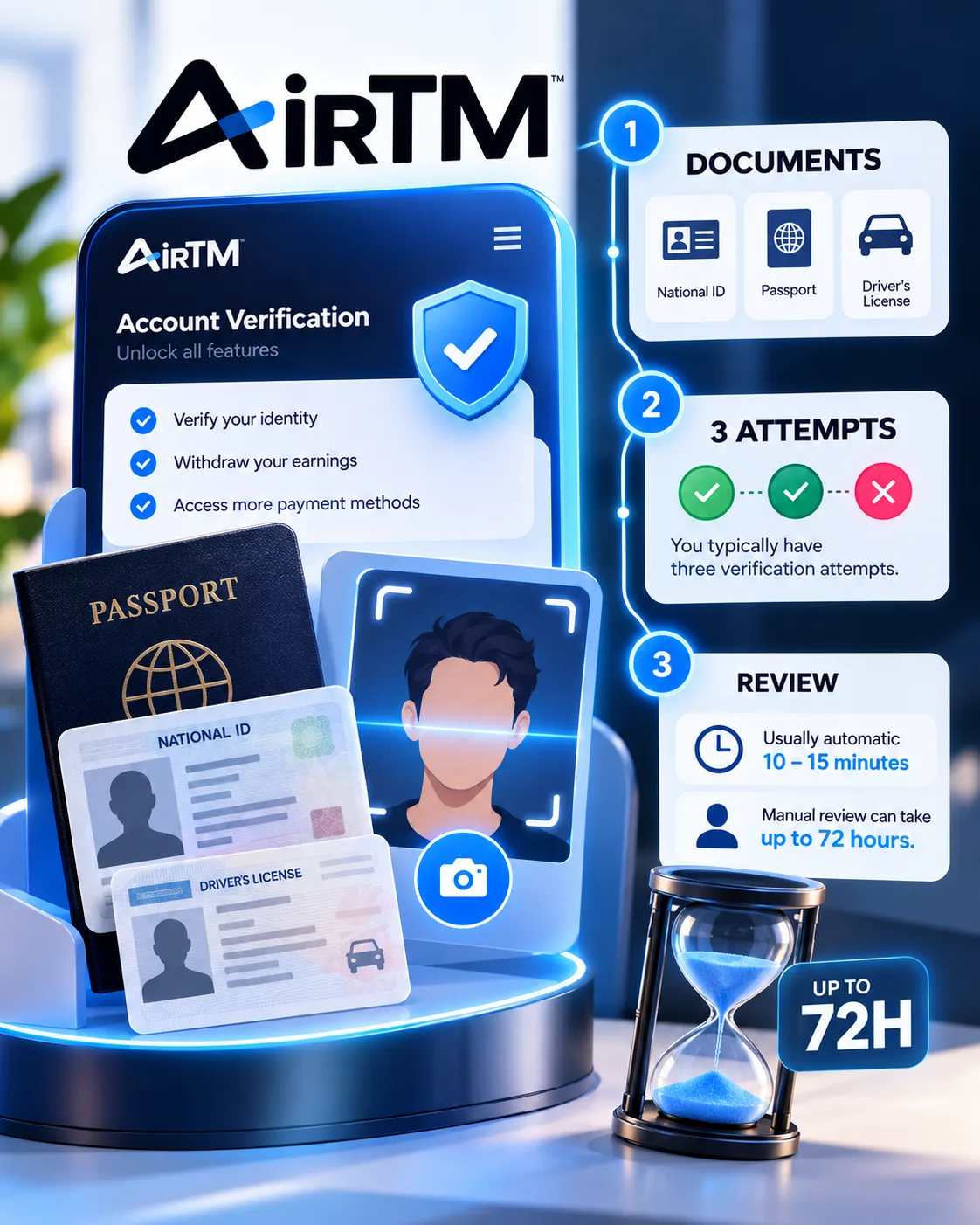
According to AirTM 's verification policy, users have exactly three attempts to complete identity verification. If you fail on the third attempt, the automated process is blocked and you must contact support at support@airtm.com for manual assistance, which can take up to 72 hours. The accepted documents are a national ID, a passport, or a valid driver's license — but the photo quality rules are strict, and a single rejected image counts as a failed attempt.
The Short Answer
AirTM requires verification before you can receive any payments. AirTM states that the automated process takes less than 10 minutes if your documents are accepted. If a manual review is required, it can take up to 72 hours.
The three-attempt limit is the critical constraint. Each submission — regardless of whether it fails because of a blurry photo, an expired document, or a system error — counts as one attempt. Once you have used all three, you cannot retry without contacting support.
For a full review of how AirTM works for GPT site users, including the fee structure and the P2P cashout network, see our AirTM review for GPT site payouts.
Which Documents AirTM Accepts
AirTM accepts three types of government-issued identification documents. The exact availability varies by country, and in some cases AirTM may request additional documentation to complete the process.
| Document type | Accepted? | Notes |
|---|---|---|
| National ID card | Yes | Both sides required (front and back) |
| Passport | Yes | Only the photo page is required |
| Driver's license | Yes (valid only) | Both sides required; must not be expired |
| Residence permit | Case-by-case | May be accepted in some countries |
The document types listed are provided as a guide based on AirTM's documentation. Accepted documents may vary by country, and AirTM may request additional documentation — such as a proof of address — to complete verification in some cases.
AirTM does not accept digital IDs, screenshots of documents, or expired documents. The physical document must be present and photographed directly.
For a step-by-step guide to receiving GPT payouts in AirTM, including the name matching requirement and the US Virtual Account activation, see our AirTM receiving tutorial.
The Photo Rules That Cause Most Rejections
The most common reason verification fails is not the document itself. It is the photo. AirTM's automated system checks for specific quality standards, and a rejection counts as a failed attempt.
Your photos must meet all of the following criteria:
- Sharp and clear. No blur, no glare, no shadows that obscure data.
- All edges visible. The entire document must be in the frame — no cropping.
- Both sides shown. Except for passports, where only the photo page is needed.
- Good condition. The document must not be torn, faded, or damaged.
- Not expired. Check the expiration date before you start.
There are also specific actions that will cause an automatic rejection:
- Taking a photo of your document on another screen (e.g., a photo of a photo on your computer monitor)
- Sending photos through messaging apps like WhatsApp or Telegram, which compress the image
- Using edited, filtered, or AI-enhanced images
- Photographing the document at an angle or with flash glare
AirTM's own documentation states: "Do not photograph your document on another screen — this will be automatically rejected."
For the full AirTM review, including the account block risk and the 3-attempt limit, see our AirTM review for GPT site payouts.
Step-by-Step: How to Complete AirTM Verification
- Open the AirTM app on your phone and sign in.
- Go to Settings → Verification and tap the button to start. The platform will redirect you to your web browser to complete the process.
- Select your document type: National ID, Passport, or valid Driver's License. Choose the country that issued the document.
- Take photos of your document when the platform prompts you — front, back if applicable, and a selfie.
- Check that the images are clear before confirming your submission. Once you confirm, it counts as one attempt.
- Wait for confirmation. AirTM states that automatic verification takes less than 10 minutes. If manual review is needed, it may take up to 72 hours.
If the camera does not activate, go to Settings → Apps → [your browser] → Permissions and grant camera access. The photos can be 3–4 MB, and uploading may take 3 or more minutes. Wait without interrupting the process.
Place your document on a flat surface with no glare or flash, and make sure all details are legible. If the automated system rejects the image, that attempt is consumed.
What Happens If You Fail All Three Attempts
If you do not complete verification on the third attempt, the automated process is blocked. You must contact AirTM support at support@airtm.com for manual assistance.
The support team will review your case and guide you through an alternative verification process. This can take up to 72 hours from the moment you submit your request. In practice, response times vary depending on the volume of support requests.
There is no way to reset the three-attempt counter by yourself. Creating a new account is not an option — AirTM detects duplicate accounts and may block both.
If your verification is permanently rejected and you cannot receive GPT payouts, see our guide to Revolut alternatives for GPT site users for other receiving options.
How Long Does Verification Take?
| Stage | Time | Notes |
|---|---|---|
| Automated verification | Less than 10 minutes | If all documents are accepted |
| Manual review | Up to 72 hours | If the automated system cannot verify |
| Support response after 3 failed attempts | Up to 72 hours | Contact support@airtm.com |
AirTM states that the automated process is the fastest route. The majority of verifications that succeed are completed within 10 minutes. The delays occur when the system cannot classify the document or the photo quality does not meet the standards.
If you are waiting for a manual review, do not submit additional documents through the app. The support team will provide instructions on how to proceed.
Tips to Avoid Wasting Your Attempts
With only three attempts, preparation is critical. These are the steps that reduce the risk of rejection.
- Clean your camera lens. A smudged lens is a common cause of blurry photos.
- Use natural lighting. Avoid direct flash, which creates glare on laminated documents.
- Place the document on a dark, flat surface. This makes the edges easier to detect.
- Hold the phone steady. Use both hands or rest your elbows on a table.
- Check the preview. Before confirming, zoom in to verify that all text and numbers are legible.
- Do not use digital IDs. Even if your country allows digital identification, AirTM requires the physical document.
- Check the expiration date. An expired document will be rejected automatically.
The selfie step is also a common failure point. AirTM requires a clear photo of your face, not a screenshot or a filtered image. Remove hats, sunglasses, and anything that obscures your face.
For a comparison of AirTM's verification process with Wise and Revolut, see our Wise alternatives for GPT site users.
Frequently Asked Questions
How many attempts does AirTM give for identity verification?
Exactly three attempts. If you fail on the third attempt, the automated process is blocked and you must contact support@airtm.com for manual assistance.
What documents does AirTM accept for verification?
AirTM accepts a national ID card, a passport, or a valid driver's license. The exact documents accepted may vary by country. AirTM may also request additional documentation, such as a proof of address, in some cases.
How long does AirTM verification take?
Automated verification takes less than 10 minutes. If manual review is required, it can take up to 72 hours. The same timeline applies to support responses after three failed attempts.
Can I use a digital ID for AirTM verification?
No. AirTM requires the physical document. Digital IDs, screenshots, and photos of documents on another screen are automatically rejected.
What happens if AirTM rejects my document photo?
Each rejection counts as one attempt. If you have attempts remaining, you can retry with a better photo. If you have used all three, you must contact support for manual assistance.
Why was my AirTM verification rejected?
The most common reasons are blurry photos, glare or shadows on the document, missing edges, only one side of the document shown, expired documents, or using a screenshot instead of a direct photograph.
Can I create a new AirTM account if my verification fails?
No. AirTM detects duplicate accounts and may block both. If you have exhausted your attempts, contact support@airtm.com for assistance with your existing account.
Does AirTM verification require a selfie?
Yes. The verification process includes a selfie step. You need a clear photo of your face without hats, sunglasses, or filters.
Get the Ultimate GPT Insider Guide🚀
Learn how survey disqualifications work and proven ways to qualify for more studies. 100% Free.
LootHub.org
Recommended posts
Continue with these related reward guides.
 VERIFIED 2026
Is AirTM Safe for GPT Site Earnings? Security, Regulation & Account Blocks
 VERIFIED 2026
AirTM vs Wise vs Payoneer for GPT Site Users: Which One to Choose?
 VERIFIED 2026
AirTM Alternatives for GPT Site Users: When AirTM Is Not the Right Choice
 VERIFIED 2026