Honeygain Not Earning? 7 Causes and Fixes (2026 Troubleshooting Guide)
 VERIFIED 2026
Quick answer
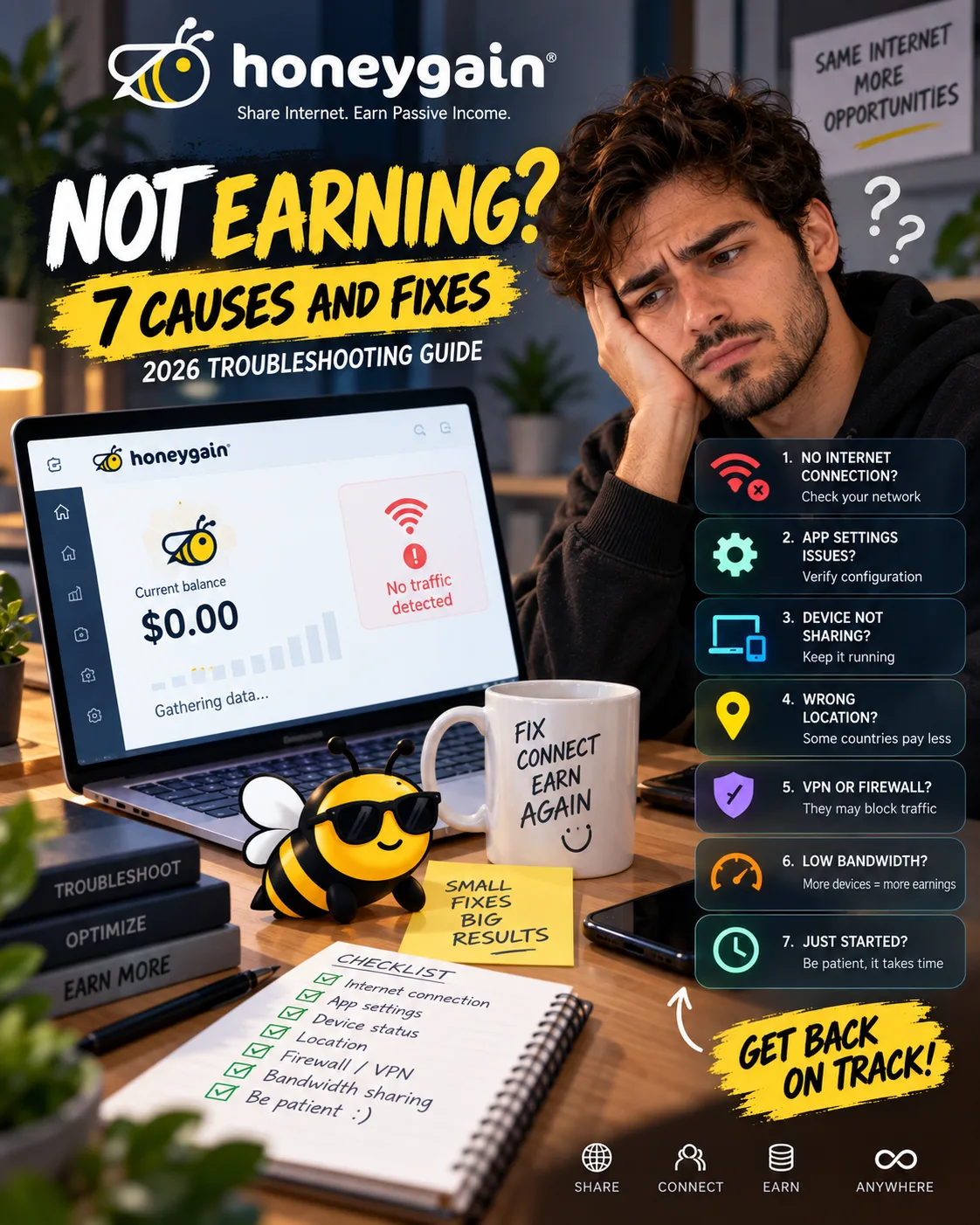
If Honeygain is showing "Connected. Waiting for traffic" and your balance has not moved in days, the cause is almost always one of seven things: your device is not actually connected, your IP has been flagged, Content Delivery is queued, the app needs a restart, your network is overused, you are on a datacenter IP, or you simply have no demand in your region right now. I hit six of these seven during six months of testing on three devices. Here is what actually fixed each one — and the two problems that cannot be fixed.
Honeygain is not a complex app, but it has more moving parts than it looks. The dashboard shows a status for each device, the Content Delivery queue has its own rules, and the earning rate depends on demand that fluctuates hour by hour. When the app stops earning, the cause is usually something visible on your dashboard or in your logs. This guide walks through every cause I encountered, the diagnostic steps, and the fix that worked. For a full picture of what Honeygain normally pays, see our Honeygain review.
Quick Diagnosis: Check These Five Things First
Before digging into the seven causes, run through this checklist. It covers 90% of the cases I encountered and takes about two minutes:
- Check the dashboard status. Log in to your Honeygain account and look at the status next to each device. If it says "Connected," the app is running but may not be receiving traffic. If it says anything else — "Connecting," "Error," or "Disconnected" — that is your problem.
- Check your transactions. Go to the Transactions history view and look at the last 24–48 hours. If credits are appearing but slowly, your app is working and the issue is demand, not a bug. If there are no transactions at all, something is broken.
- Check the device count on your network. Honeygain allows only one device per IP address. If you have two devices on the same Wi-Fi network, the second will show a "Network overused" error and will not earn.
- Check your IP type. If your dashboard shows an "Unusable network" error, your IP has been classified as a datacenter or reserved IP. Honeygain does not pay for those.
If none of these fix the problem, work through the seven causes below.
Cause 1: Your Device Is Not Actually Connected
This is the simplest cause and the most common. The app is installed, but it is not sharing. The dashboard status will tell you.
What the statuses mean
| Status | What it means | What to do |
|---|---|---|
| Connected | App is running and connected to Honeygain's network | If no traffic, see causes 4–7 |
| Connecting | App is trying to connect | Wait a few minutes. If it persists, restart the device |
| Error | Something is wrong with the connection | Check logs, restart device |
| Disconnected | App is not running or cannot reach the network | Open the app and check |
How to fix it
- Restart the device. Full restart, not just closing the app.
- Reinstall the app if restarting does not work. Uninstall, download the latest version from the official website or app store, and log in again.
- Check for app updates. Older versions have known bugs that prevent sharing. Honeygain's Docker image, for example, had a version issue in late 2025 where an update was required to restore traffic.
Cause 2: "Network Overused" — More Than One Device on the Same IP
Honeygain allows exactly one device per IP address. This is a hard limit, not a suggestion. If you install Honeygain on two devices connected to the same Wi-Fi network, the second device will show a "Network overused" error and will not earn.
Why this happens
The error appears when Honeygain detects more than one active device on the same network. The platform's help documentation is explicit: "Users may connect 1 device per one IP/Network. Additional devices added with a legitimate installation will show a 'Network overused' error until there is only 1 device connected."
How to fix it
- Disconnect the extra device. Only one device per IP can earn. Choose which one you want to keep.
- Move the extra device to a different network. A mobile hotspot or a different Wi-Fi network will give it a separate IP address.
- Restart your router. If you are assigned a dynamic IP, restarting the router may give you a fresh IP address that is not shared with other users.
- Check for unauthorized devices. If you live in a shared building or use public Wi-Fi, someone else on the same network may also be using Honeygain. Check your router's device list.
Important: Do not try to bypass this rule with a VPN or proxy. Honeygain detects this and will suspend your account. The limit exists to prevent abuse, and the platform enforces it strictly.
Cause 3: "Unusable Network" — Your IP Is a Datacenter or Reserved IP
Honeygain does not pay for traffic from datacenter IP addresses or reserved IP addresses. If your dashboard shows an "Unusable network" error, your IP has been classified as one of those types.
Why this happens
Honeygain works with residential and mobile IP addresses — the kind assigned to home internet connections and phones. Datacenter IPs (from cloud providers, VPS hosts, and some VPNs) are blocked because they are not genuine residential connections. Reserved IPs (used for internal networks) are also blocked.
How to fix it
- Restart your router. If your ISP assigns dynamic IPs, restarting the router can give you a new IP address that may not be classified as datacenter. Honeygain's help documentation suggests this as a fix: "if you are assigned with dynamically changing IP address, try restarting your router, as this can cause your ISP to assign you with a different IP address."
- Contact your ISP. If restarting does not work, your ISP may have assigned you a datacenter IP by mistake. Ask for a residential IP address.
- Do not use a VPS or cloud server. Honeygain is not designed to run on cloud infrastructure. The IP will be flagged as datacenter, and you will not earn.
Note: Some ISPs use carrier-grade NAT (CGNAT), which can cause your IP to appear as a datacenter IP even though you are on a residential connection. If this happens, restarting the router may help temporarily, but the issue may recur. Contacting your ISP is the only permanent fix.
Cause 4: Content Delivery Stuck in Queue
Content Delivery is the highest-paying mode on Honeygain for desktop users, but it has a limited number of slots. If all slots are full, your device is placed in a queue and will not earn Content Delivery credits until a slot opens up.
Why this happens
Honeygain's help documentation explains: "There is a limited number of devices that can share internet bandwidth through Content Delivery at the same time. If there are no more spots available on the Content Delivery, you will be put in the queue. Once an open spot comes up it will be activated for you."
How to fix it
- Check your IP type. Content Delivery requires an ISP or MOB IP type. If your IP is classified as DCH (datacenter) or RSV (reserved), you cannot use Content Delivery at all.
- Use Windows or macOS. Content Delivery is only available on Windows and macOS devices. It does not work on Android, Linux, or Raspberry Pi.
- Check your country. Content Delivery is only available in certain countries. If you are in an unsupported country, the option will not appear. The full list is available in our Content Delivery guide.
Bottom line: If Content Delivery is stuck in queue, there is nothing to fix. It is a capacity issue. Your regular bandwidth sharing should still work and earn credits, just at a lower rate.
Cause 5: Your Credits Stopped Accumulating After an Update
This was the most frustrating issue I encountered. In December 2025, Honeygain pushed an update to its Docker image that broke sharing for some users. The app showed "Connected" but traffic was zero, and the logs showed API ping errors.
What happened
In the engageub/InternetIncome GitHub discussions, multiple users reported that after switching to the latest Honeygain Docker image, traffic dropped to nearly zero. One user wrote: "Honeygain has been sharing around 1000 credits a day, or even more, but now it shares unrecognizable 0.24 or something completely minimum with 10 devices."
The fix, in that case, was to use a specific older version of the Docker image — honeygain/honeygain:0.6.6 — rather than the latest. The maintainer of the InternetIncome project confirmed: "You can try using the latest version of honeygain by changing honeygain/honeygain:0.6.6 to honeygain/honeygain in internetIncome.sh file."
How to fix it
- Check the app version. Make sure you are running the latest version of Honeygain. If you are using Docker, check the version of the image.
- Roll back if necessary. If a recent update broke sharing, rolling back to a known working version may fix it. This is especially relevant if you are running Honeygain in Docker or on a VPS.
- Check the logs. If you are running the Docker version, enable logging and look for API ping errors. These indicate that the app cannot reach Honeygain's servers.
This issue affected Docker users primarily. If you are using the standard desktop or mobile app, a simple restart or reinstall usually fixes it.
Cause 6: Low Demand in Your Region
This is not a bug — it is how Honeygain works. The app earns money by routing third-party traffic through your connection, and the demand for that traffic fluctuates based on where you live and what time of day it is.
Why this happens
Honeygain's own blog acknowledges this: "There is currently no fixed traffic rate, as traffic levels fluctuate continuously." The company identifies five main reasons for fluctuating earnings:
- Supply and demand for traffic. When more users are sharing and fewer partners need traffic, rates drop.
- Device type. Desktop devices with Content Delivery earn more than mobile devices.
- Connection speed. Faster connections can share more data, up to a point.
- Referral system. Referrals can supplement your income regardless of demand.
- Location. Some countries have higher demand than others.
What to do
- Be patient. Demand fluctuates. If your app is connected and the dashboard shows "Connected," it will resume earning when demand returns.
- Run Content Delivery. If you are on desktop and Content Delivery is available, enable it. It pays a flat rate regardless of demand, which provides more consistent earnings during low-demand periods.
- Build a referral network. The 30% lifetime commission is not affected by regional demand. If you are in a low-demand area, referrals are the most reliable way to increase your earnings. For the full breakdown, see our Honeygain referral guide.
Cause 7: Referral Bonuses Not Appearing
If your main concern is referral income rather than your own sharing, this is a separate troubleshooting path. Honeygain pays referral bonuses based on your referrals' activity, and if they are not sharing, you are not earning.
Why this happens
Honeygain's help documentation outlines the three-step check: first, confirm your referrals appear on your referral list. Second, confirm your friends are actually sharing bandwidth — they may have the app installed but not running, or they may not have it installed at all. Third, check your transactions history to see how much referral bonus you gained the previous day.
What to do
- Check your referral list. If a referral is not showing up, the link may not have tracked correctly.
- Follow up with your referrals. Send them a reminder to keep the app running. The most common reason referrals stop earning is that they forgot to open the app.
- Check the transactions history. The referral bonus is credited daily. If it is zero for several days, your referrals are not sharing.
What Cannot Be Fixed
Two causes of "not earning" cannot be fixed by anything you do:
1. Your region has no demand
If you are in a country with low demand for residential IPs, your traffic will be slow or nonexistent regardless of what you do. Honeygain's help documentation confirms: "Whether your connection is used or not depends on how much demand there is at that moment and where you're located." If you are in a Tier 2 market, see our Honeygain earnings by country guide for realistic expectations.
2. Your account has been flagged
If you have used a VPN, created multiple accounts, or violated any other term of service, your account may be flagged or suspended. This is permanent. Honeygain's terms state that confirmed violations result in permanent disablement with no recovery and no appeal. If your dashboard shows a suspension notice, there is no fix — the account is gone. For more on the safety and privacy implications, see our Is Honeygain Safe? guide.
FAQ
Why is my Honeygain showing zero traffic?
Zero traffic usually means one of three things: your device is not actually connected (check the dashboard status), your IP is classified as datacenter or reserved (check for "Unusable network" error), or there is no demand in your region right now.
How long does it take for Honeygain to start earning after installation?
After installation and login, the app typically starts sharing within a few minutes to a few hours. If you see no traffic after 24 hours, restart the device. If the problem persists, check the dashboard for errors.
Why does Honeygain show "Connected. Waiting for traffic"?
This status means the app is connected to Honeygain's network but has not received any traffic to route yet. This is normal during low-demand periods. If it persists for more than 24 hours, check your IP type and restart the device.
Why is my Content Delivery constantly "In Queue"?
Content Delivery has a limited number of active slots. If all slots are full, you are placed in a queue. There is no way to jump the queue. Wait, and your device will be activated when a slot opens. In the meantime, your regular bandwidth sharing should still earn credits.
Why do I get a "Network overused" error?
This error means you have more than one device with Honeygain active on the same network. Honeygain allows only one device per IP address. Disconnect the extra device or move it to a different network, such as a mobile hotspot.
Can I use a VPN to fix low earnings?
No. Using a VPN with Honeygain is a violation of the terms of service and will result in permanent account disablement. Do not use a VPN to try to appear in a higher-paying region.
Do Honeygain credits expire?
Yes. Honeygain credits expire after 6 months from the last day you shared bandwidth with the platform. If you are an active user, your credits will not expire. But if you stop sharing for 6 months, you will lose your balance. Redeem regularly to avoid this.
Platform information and limitations
Sudden drops are usually caused by demand fluctuations, not a bug. If your earnings dropped from one day to the next, check the dashboard for errors and restart the device. If the drop is gradual over weeks, it is likely a regional demand issue. For the full picture on how demand affects earnings, see our Honeygain review.
Final Verdict
The two problems that cannot be fixed are low regional demand and a flagged account. If you are in a Tier 2 market, your earnings will be lower than what you see in US-focused reviews — not because of a bug, but because the demand is genuinely lower. If you have violated the terms of service, the account is gone and there is no recovery.
For most users, Honeygain works. It just requires occasional attention. Check the dashboard weekly, restart devices monthly, and do not expect traffic to be constant. The app is designed for passive earning, but it is not entirely passive — it needs a restart every now and then, just like any other piece of software.
For more on how much Honeygain actually pays, see our Honeygain review. For the payout process, see our payment methods guide. For the privacy and security implications, see Is Honeygain Safe?.
Get the Ultimate GPT Insider Guide🚀
Learn how survey disqualifications work and proven ways to qualify for more studies. 100% Free.
LootHub.org
Recommended posts
Continue with these related reward guides.
 VERIFIED 2026
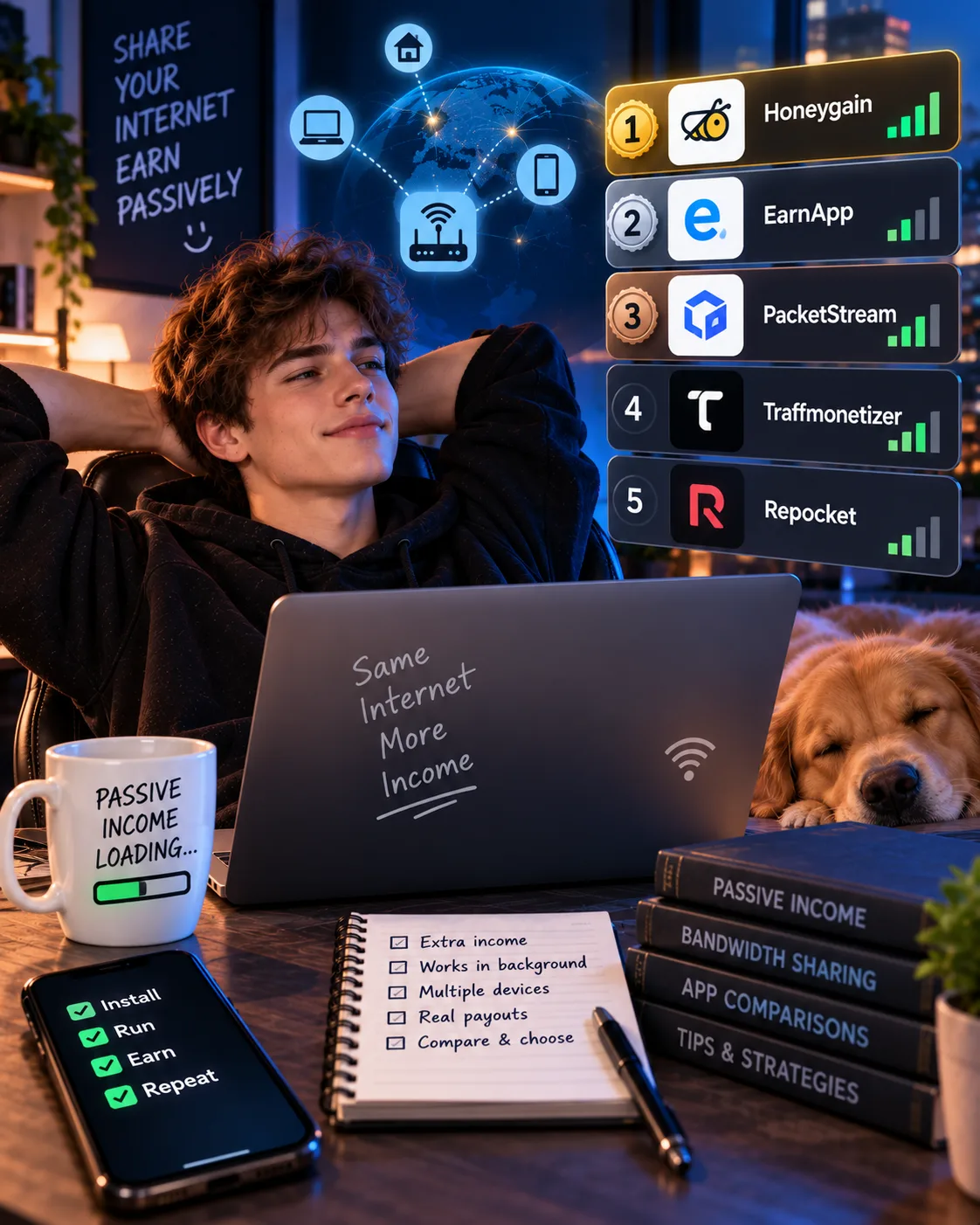
Honeygain vs EarnApp vs PacketStream vs Traffmonetizer vs Repocket: Real Passive Income Ranking (2026)
 VERIFIED 2026
Honeygain Content Delivery Explained 2026: How to Earn More Credits
 VERIFIED 2026
Honeygain Review 2026: Platform Analysis — Real Earnings & Verdict
 VERIFIED 2026
Is Honeygain Safe? Real Earnings, Legal Risks & Better Alternatives (2026)
 VERIFIED 2026
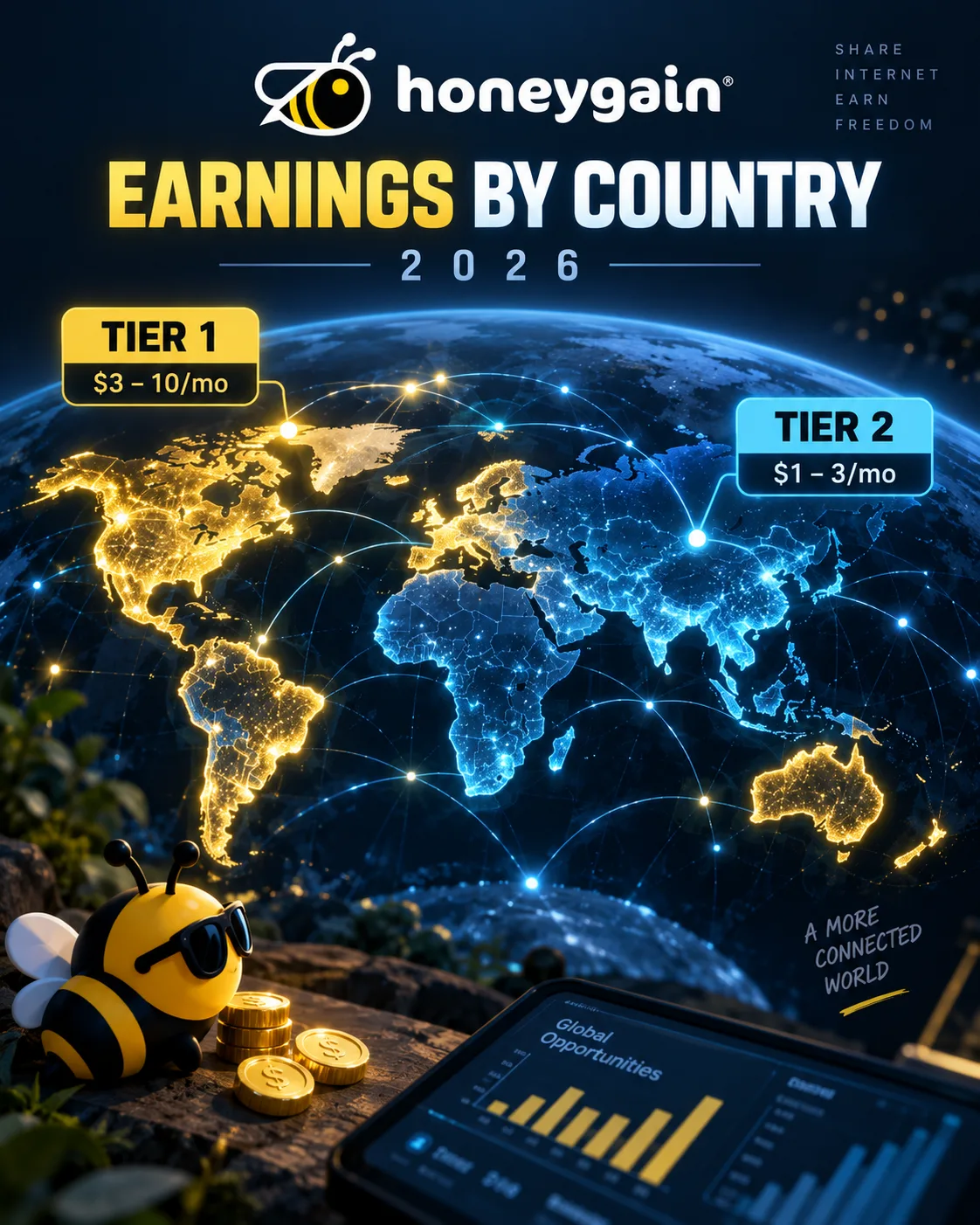
Honeygain Earnings by Country 2026: Tier 1 vs Tier 2 — Real Numbers
 VERIFIED 2026